
 en
en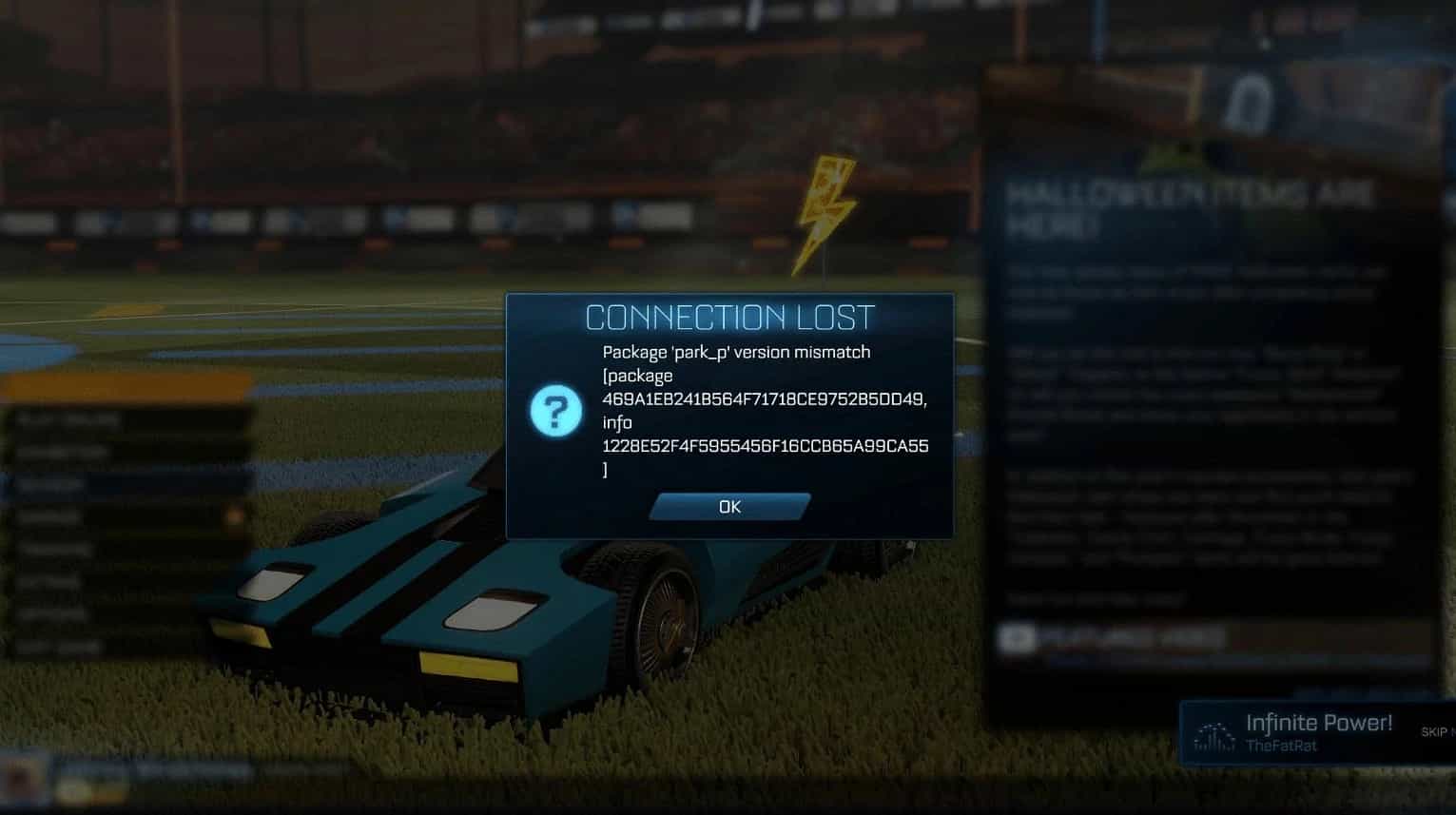
Rocket League Version Mismatch: Causes and Step-by-Step Solutions for Error Fixes
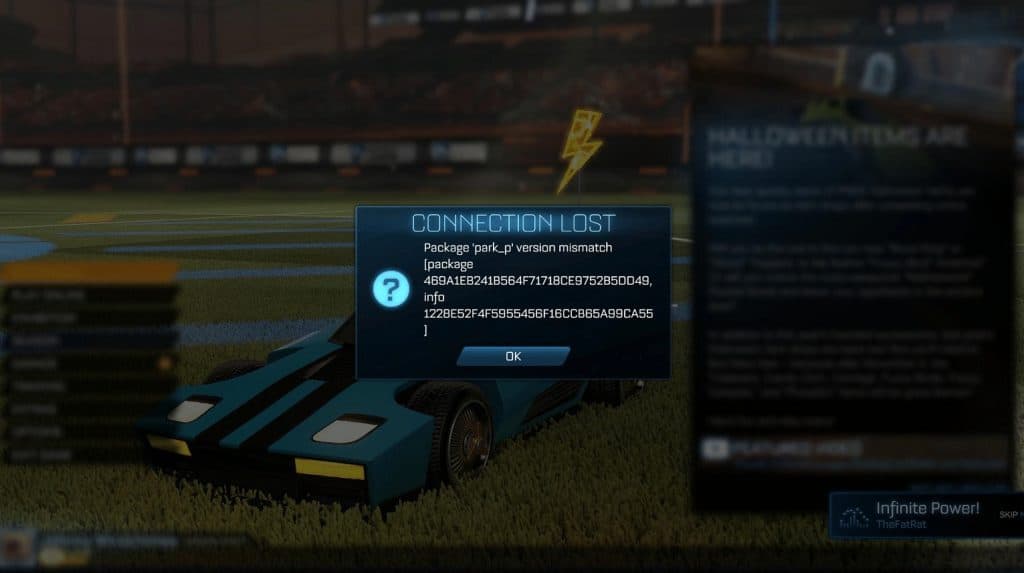
The Rocket League Version Mismatch error occurs when your local game version doesn't match the server's expected version, preventing you from joining online matches. This frustrating message typically appears after Psyonix releases game updates, but your client hasn't properly downloaded or installed the latest patch.
While the error might seem complex, it's fundamentally a synchronization issue between your game client and Rocket League's servers.
The error message usually reads: "Version Mismatch. Please get the latest version of the game," and appears when attempting to queue for matches.
All players must run the same game version to participate in online gameplay together, making this update synchronization critical for the multiplayer experience.
Primary Causes of Version Mismatch Errors
- Incomplete or Failed Updates
- The most common cause occurs when Steam or Epic Games Launcher fails to automatically download the latest Rocket League update. This can happen due to:
- Network interruptions during download
- Insufficient storage space
- Launcher cache corruption
- Background processes interfering with updates
- The most common cause occurs when Steam or Epic Games Launcher fails to automatically download the latest Rocket League update. This can happen due to:
- Platform Launcher Issues
- Steam users frequently experience version mismatch when the launcher doesn't properly check for updates. The Steam client may not recognize that a new Rocket League version is available, leaving your game outdated while servers expect the latest version.
- System Time and Date Problems
- Incorrect system time can cause synchronization issues with Rocket League servers. The game requires accurate timestamps for proper server communication, and mismatched system clocks can trigger version mismatch errors even when updates are current.
- Firewall and Antivirus Interference
- Security software may block Rocket League updates or prevent proper communication with game servers. Windows Defender, third-party antivirus programs, and firewall settings can interrupt the update process or block game files.
- Corrupted Game Files
- Damaged or corrupted game files can cause the client to report incorrect version information. This often occurs after incomplete downloads, system crashes during updates, or storage device errors.
Step-by-Step Solutions for Rocket League Version Mismatch
For Steam Users
Restart Steam Completely
The most effective first-step solution involves fully restarting Steam to force update detection:
- Close Rocket League completely if it's running
- Navigate to the system tray in the lower-right corner of your screen
- Click the up arrow (Show Hidden Icons) to reveal hidden icons
- Right-click the Steam icon and select "Exit"
- Wait 10-15 seconds for Steam to fully close
- Relaunch Steam from your desktop or Start menu
- Check for updates - Steam should automatically detect and download the latest Rocket League update
This method works because Steam doesn't always check for updates while running in the background. A complete restart forces the client to query servers for the latest game versions.
Verify Game File Integrity
If restarting Steam doesn't resolve the issue, verify your game files:
- Open Steam and navigate to your Library
- Right-click Rocket League in your game list
- Select "Properties" from the context menu
- Click the "Installed Files" tab in the properties window
- Click "Verify integrity of game files" button
- Wait for verification to complete (this may take several minutes)
- Restart Steam and launch Rocket League
Steam will check every game file against its database and redownload any corrupted or missing files. This process resolves issues caused by incomplete downloads or file corruption.
Adjust Steam Update Settings
Configure Steam to prioritize Rocket League updates:
- Right-click Rocket League in your Steam Library
- Select "Properties" from the menu
- Navigate to the "Updates" tab
- Change the dropdown to "High Priority - Always update this game before others"
- Click "Close" to save settings
- Force update check by clicking on Rocket League in your library
If updates still don't appear, temporarily change the setting to "Only update this game when I launch it," close the properties window, then change it back to "High Priority" to trigger an update check.
Clear Steam Download Cache
Corrupted download cache can prevent proper update detection:
- Open Steam and click "Steam" in the top-left corner
- Select "Settings" from the dropdown menu
- Navigate to "Downloads" in the left sidebar
- Click "Clear Download Cache" button
- Confirm the action when prompted
- Restart Steam to rebuild the cache
- Check for Rocket League updates
This process removes temporary files that may be interfering with update downloads and forces Steam to rebuild its download cache.
For Epic Games Users
Clear Epic Launcher Cache
For Epic Games users experiencing version mismatch:
- Close Epic Games Launcher completely
- Press Windows Key + R and type %localappdata%
- Navigate to EpicGamesLauncher\Saved
- Delete the following folders:
- webcache
- webcache_4147
- webcache_4430
- Restart Epic Games Launcher
- Check for Rocket League updates
Enable Auto-Updates
Ensure automatic updates are enabled:
- Open Epic Games Launcher
- Navigate to your Library
- Click the three dots (...) next to Rocket League
- Select "Manage"
- Toggle "Auto Update" to ON (bar should turn blue)
- Restart Epic Games Launcher to apply settings
Advanced Troubleshooting Techniques
System Time Synchronization
Ensure your system clock is accurate:
- Right-click the clock in your taskbar
- Select "Adjust date/time"
- Toggle ON "Set time automatically"
- Toggle ON "Set time zone automatically"
- Click "Sync now" to force synchronization
- Restart Rocket League and test connectivity
Accurate system time is crucial for server communication and can resolve version mismatch errors even when your game appears up-to-date.
Windows Firewall Configuration
Add Rocket League exceptions to Windows Firewall:
- Press Windows Key and type "Windows Defender Firewall"
- Select "Allow an app through Windows Defender Firewall"
- Click "Change settings" (requires administrator privileges)
- Click "Allow another app" if Rocket League isn't listed
- Browse to your Rocket League installation (usually in Steam\steamapps\common\rocketleague)
- Select RocketLeague.exe and click "Add"
- Ensure both Private and Public boxes are checked for Rocket League
- Click "OK" to save settings
Proper firewall configuration ensures Rocket League can communicate with update servers and game servers without interference.
Cache and Temporary File Cleanup
Clear Rocket League's local cache:
- Close Rocket League completely
- Press Windows Key + R to open Run dialog
- Type the following path: %USERPROFILE%\Documents\My Games\Rocket League\TAGame
- Press Enter to navigate to the folder
- Right-click the "Cache" folder and select "Delete"
- Restart your computer to clear system cache
- Launch Rocket League - the game will rebuild its cache automatically
This process removes corrupted cache files that may contain outdated version information.
DirectX and Visual C++ Updates
Ensure essential game libraries are current:
- Download DirectX End-User Runtime from Microsoft's official website
- Install the latest Microsoft Visual C++ Redistributables
- Restart your computer after installation
- Verify DirectX 11 compatibility by running "dxdiag" from Run dialog
- Launch Rocket League and test for version mismatch errors
Rocket League requires DirectX 11 to function properly, and outdated libraries can cause various errors including version mismatches.
Preventing Rocket League Version Mismatch Errors
Optimize Update Settings
Configure your platforms for reliable updates:
For Steam Users:
- Set Rocket League to "High Priority" updates
- Enable "Always keep this game updated"
- Ensure Steam starts with Windows for background updates
For Epic Games Users:
- Enable auto-updates for Rocket League
- Keep Epic Games Launcher running in background
- Check for launcher updates regularly
System Maintenance
Regular system maintenance prevents many update-related issues:
- Keep Windows updated to ensure compatibility
- Update graphics drivers regularly from manufacturer websites
- Maintain adequate storage space for downloads
- Run disk cleanup monthly to remove temporary files
- Disable unnecessary startup programs to free system resources
Network Optimization
Stable internet connectivity is crucial for successful updates:
- Use wired ethernet connection when downloading updates
- Close bandwidth-intensive applications during updates
- Temporarily disable VPN software that might interfere with downloads
- Configure router QoS settings to prioritize gaming traffic
Server Status Verification
Before troubleshooting client-side issues, verify Rocket League server status:
Official Status Pages
- Epic Games Status: status.epicgames.com
- Rocket League Support X: @RL_Status
- Official Rocket League X: @RocketLeague
Community Resources
- DownDetector: Real-time user reports of server issues
- Reddit r/RocketLeague: Community discussions about ongoing problems
- Steam Community Forums: User-reported issues and solutions
If servers are experiencing outages, version mismatch errors may persist until service is restored.
When to Reinstall
If all troubleshooting steps fail, complete reinstallation may be necessary:
Before Reinstalling
- Backup save data (usually stored in Steam Cloud or Epic's cloud saves)
- Note your current settings and keybinds
- Ensure adequate download bandwidth for the full game
Reinstallation Process
- Uninstall Rocket League through Steam or Epic Games Launcher
- Delete remaining game folders to ensure clean installation
- Clear launcher cache as described above
- Restart your computer
- Download and install Rocket League fresh
- Restore save data from cloud backups
Post-Installation
- Configure update settings immediately
- Add firewall exceptions before first launch
- Test online connectivity with a quick match
The Rocket League Version Mismatch error, while frustrating, is typically resolved through systematic troubleshooting of update mechanisms, system settings, and network connectivity.
By following these comprehensive solutions in order of complexity, most players can restore access to online gameplay and prevent future version synchronization issues. Remember that server-side problems occasionally cause similar symptoms, so always verify server status before extensive client-side troubleshooting.
Featured image credits: Rocket League
Read also:
Call of Duty Black Ops 6 Zombies Final Map “Reckoning” Release Date and Details Revealed
Counter-Strike 2 Update: Animations and Map Changes; Retakes Incoming
New SplashX Skin Bundle in VALORANT: Price, Release Date, Weapons, and More